

Find an element
The Elements tab lists elements in sections, such as Charts & numbers or Kinetic text. Each section has its own page; the cards at the end of this page link to all of them.- Point at a tile, or move keyboard focus to it, to play its animation.
- Type in Search elements to filter every section by name or keyword. Search works with English and Vietnamese words, with or without accents.
Add an element
1
Open the Elements tab
In the Library, click Motion, then Elements.
2
Place the playhead
Move the playhead to where the element should start.
3
Add the element
Click the tile, or press
Enter while it has focus. To place it somewhere else, drag the tile onto the timeline instead.4
Change its options
Select the new item. Its options appear in the Inspector, in a section named after the element.
Configure an element
The Inspector shows the element’s own options first, such as text, data, colours and fonts. Below them you find sections shared by all elements:- Timing: how long the entrance and the exit take.
- Cues: when each step of the element plays (see below).
- Preset: save the current look as your own preset.
Time steps to the voice-over
Many elements play in steps: a bar grows, a phrase gets highlighted, a notification pops in. The Cues section lists each step with its time from the start of the item, for exampleDefault +12 f.
1
Find the moment
Move the playhead, inside the item, to the moment the step should play.
2
Set the step
In Cues, click Set to playhead next to the step.
3
Undo a cue if needed
Click Clear to put the step back to its default timing.
On “word” +2 f. When the voice-over changes, the step moves with its word. If the word disappears, the step plays at its default time, and the Inspector shows a warning under the step.
Number format
Numbers in charts, counters and price tags use the Vietnamese format by default:1.000,5, with short forms such as 1,2 triệu. To use the English format (1,000.5, 1.2M), change the element’s Format option. Format also sets decimals, a prefix and a suffix.
Save your own presets
1
Style an element
Add an element and change its options until you like the look.
2
Save it
In the Inspector, under Preset, click Save as preset…, type a name and click Save.
Lottie, dotLottie and Rive files
You can import your own Lottie (.json, .lottie) and Rive (.riv) animations like any other media; see Import media. Play them with the Lottie animation and Rive animation elements, described on Lottie, Rive & emoji.
Record where an animation comes from and how you may use it:
1
Open the licence form
In the Media tab, right-click the animation file and choose License….
2
Fill it in
Enter the License name, the license and source links, the Author, and tick Attribution required if you must credit the author where the video is published.
License unknown when none is recorded. CoClip never opens these links.
More and This project
Two sections of the Elements tab work differently:- More lists graphics that do not belong to any other section. A section without tiles is hidden.
- This project lists custom elements that your AI agent wrote for the open project. They appear only in that project.
Custom elements and the trust bar
A custom element is code that your AI agent wrote. CoClip does not run it until you trust it. Until then, the element shows a placeholder, its tile reads Awaiting trust, and export is blocked. When a custom element is waiting, a bar above the preview names it.1
Check the names
Read which custom elements the bar lists. Make sure you asked your agent for them.
2
Trust them
Click Trust custom elements in this project.
- An element that threw an error shows a placeholder and blocks the export. Ask your agent to fix it, then click Retry.
- An element that took too long shows a placeholder in the preview, but the export still draws it.
Element sections
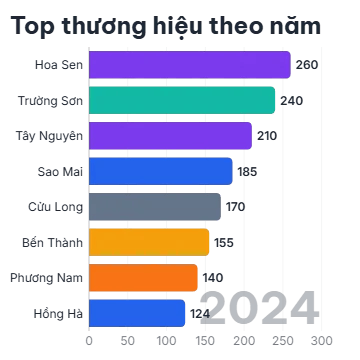
Charts & numbers
Bar, line, pie and map charts, counters, timelines and gauges.

Overlays & lower thirds
Name and location lower thirds and a price callout.
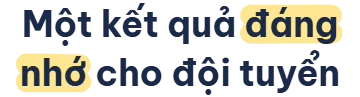
Text emphasis
Highlight, circle, strike or cross off words.
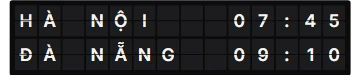
Kinetic text
Masked reveals, odometers, split-flap boards and more.

Backgrounds & storytelling
Looping backgrounds, chat messages, polaroids and split screens.
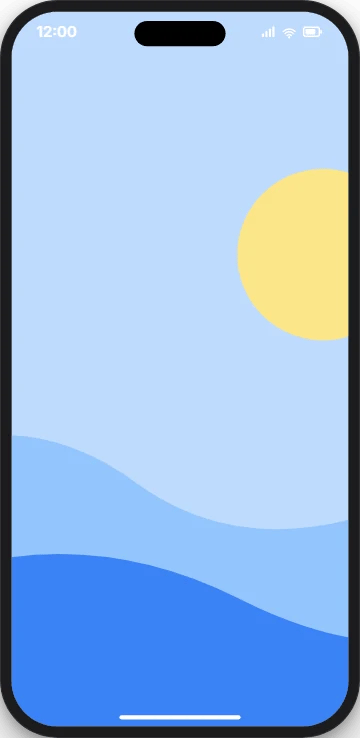
Social mockups
A phone frame, comments, notifications, polls and ratings.
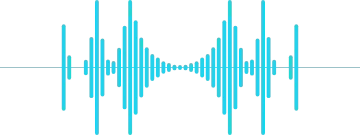
Audio visualizers
Oscilloscope, waveform and spectrum that follow the sound.

Lottie, Rive & emoji
Your Lottie and Rive animations, and animated emoji.

3D
3D logo, 3D product card and 3D text.
Brand & CTA
Logo reveal, end screen, QR card, countdown and chapter bar.

Cursor & focus
Cursor clicks, a spotlight and a magnifier.

Cinematic effects
Light leak, film grain, lens flare, confetti, sparkles and shape morph.
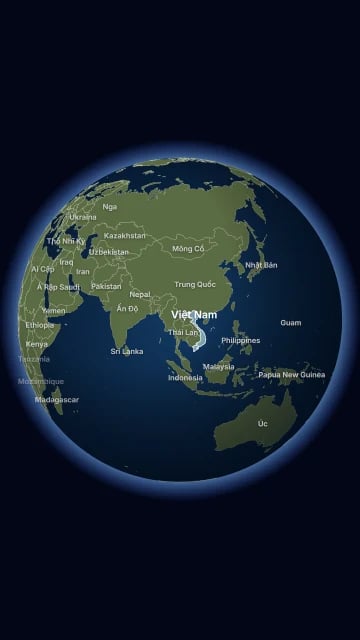
Maps
Satellite map and satellite globe.

Graphics
Headers, notes, cards, chat, chips, arrows and strokes.