Find these elements in Library › Motion › Elements, section Backgrounds & storytelling. Click a tile to add it at the playhead, or drag it onto the timeline. Select the item on the timeline to change its options in the Inspector. This section holds two kinds of elements. Backgrounds fill the whole frame, and the moving ones loop seamlessly whatever the item length. Storytelling elements arrange pictures, videos or messages and change at their cues.

Backgrounds

Waves

Waves element
Stacked sine-wave bands that drift in a seamless loop. Key options in the Inspector:
  • Colors: Band colours, top to bottom (2–4); bands blend between them.
  • Bands: Number of bands.
  • Loop seconds: Seconds for the bands to move one wave length; the loop is seamless at any item length.
When to use: A calm backdrop behind text or a cut-out speaker.

Zigzags

Zigzags element
Chevron bands that scroll one period per loop. Key options in the Inspector:
  • Colors: Band colours, top to bottom (2–4); bands blend between them.
  • Sharpness: 1 = sharp chevrons, 0 = soft waves.
  • Loop seconds: Seconds for the bands to move one wave length; the loop is seamless at any item length.
When to use: Energetic, playful backdrops.

Starburst

Starburst element
Alternating rays turning slowly around a centre point, looping seamlessly. Key options in the Inspector:
  • Colors: Background colour, then ray colour.
  • Rays: Number of rays.
  • Turn seconds: Seconds for the rays to turn by one ray.
When to use: Reveals, announcements, and retro or comic looks.

Liquid

Liquid element
Flowing levels of colour that loop every 12 s. Key options in the Inspector:
  • Colors: Colours from the lowest to the highest level (2–4).
  • Scale: Blob density: higher = more, smaller blobs.
  • Speed: How far the blobs flow per loop (0 = still).
When to use: Modern, soft backdrops for brands and music.

Paper

Paper element
A still paper background: a tint with a grain texture. Key options in the Inspector:
  • Tint: Paper colour.
  • Grain: Strength of the paper grain (0 = flat colour).
  • Seed: Another number gives another look.
When to use: Hand-drawn and note-style explainers; it pairs well with Text emphasis.

Notebook

Notebook element
A ruled notebook page with a margin line and punch holes; the lines can draw in at the start. Key options in the Inspector:
  • Spacing: Distance between ruled lines in px.
  • Holes: Punch holes along the left edge.
  • Draw in: Ruled lines draw in during the first second.
When to use: Study tips, lessons and to-do lists.

Storytelling

Speed lines

Speed lines element
Manga speed lines that flicker around a clear centre, looping seamlessly. Key options in the Inspector:
  • Color: Line colour.
  • Count: Number of lines.
  • Inner: Size of the clear centre.
When to use: Shock, surprise and punchline moments.

Messages

Messages element
A chat conversation where message bubbles pop up one by one, on the left and the right. Key options in the Inspector:
  • Messages: One message per line (up to 12); start a line with > to put it on the right.
  • Left bg: Left bubble colour.
  • Right bg: Right bubble colour.
When to use: Re-enact a conversation, a customer question or a story told in texts.

Polaroids

Polaroids element
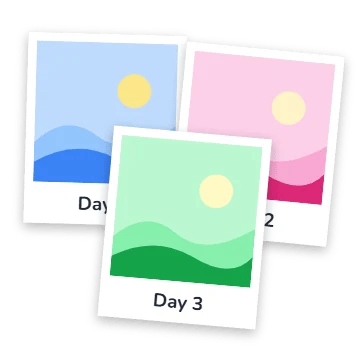
Polaroid photos with handwritten captions drop onto the frame one by one and land at different angles. Key options in the Inspector:
  • Photos: Up to 4 images or videos (muted, looped); none = 3 starter pictures.
  • Captions: One caption line per photo, in order.
  • Font: Caption font (a handwriting face by default).
When to use: Memories, trips and before-and-after moments.

Picture in picture

Picture in picture element
A full-frame picture shrinks into a corner inset at its cue, revealing a second picture behind it. Key options in the Inspector:
  • First: Picture that shrinks into the corner: an image or a video (muted, looped).
  • Second: Picture revealed behind it.
  • Corner: Corner of the inset.
When to use: Reactions, commentary over a clip, and tutorials with a face cam.

Split screen

Split screen element
A full-frame picture makes room at its cue for a second picture that slides in, top and bottom or left and right. Key options in the Inspector:
  • Second: Picture that slides in at the cue: an image or a video (muted, looped).
  • Direction: How the frame splits.
  • Ratio: Share of the frame the first picture keeps.
When to use: Comparisons, duets and two points of view.